Schedule Scripts in WordPress: Scripts Organizer 1.4.0
A sale banner or checkout tweak often has to go live at midnight, and then someone has to remember to switch it off again. Scripts Organizer 1.4.0 lets you schedule scripts in WordPress by day, date or date range, with a start time. The script turns itself on and off on schedule, even if you're asleep or on vacation. This release also adds a shortcode location, so one snippet can go anywhere you can paste a shortcode.
Flexible Color Scheme
Version 1.4.0 also changes the plugin's color scheme. The video only mentions it briefly and doesn't show it in detail.
Optimized UI for Scripts Scheduling
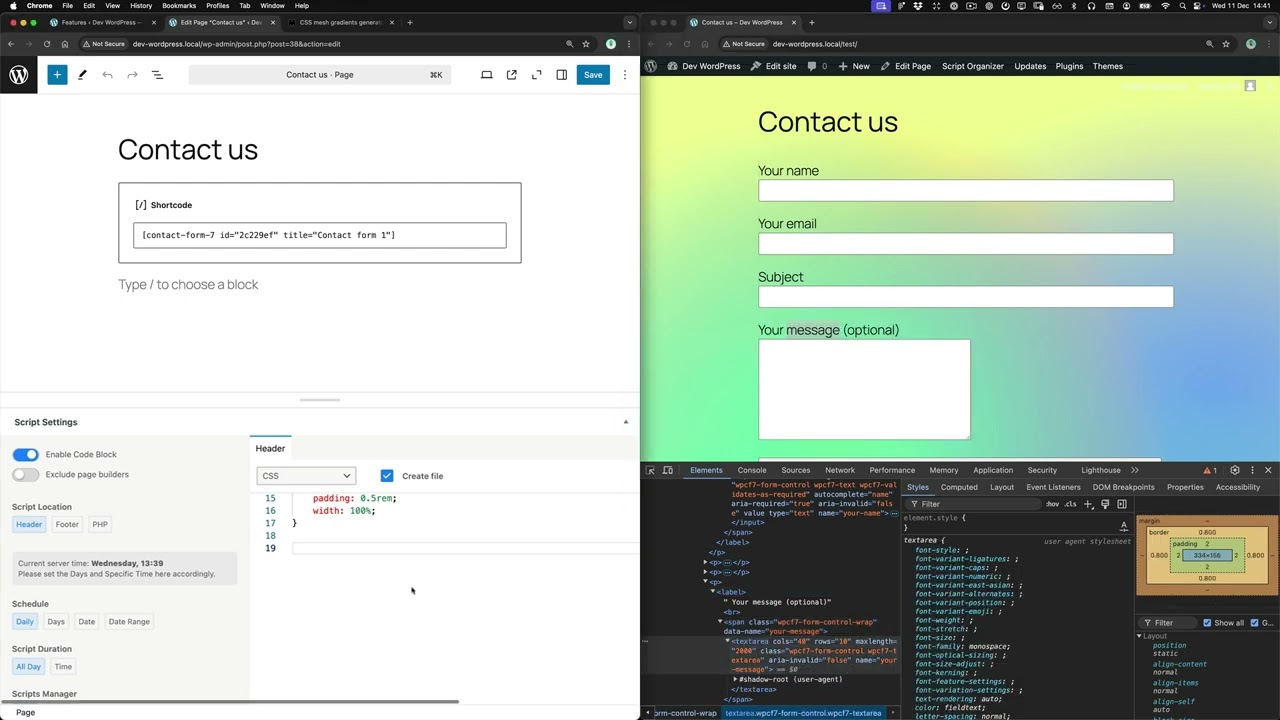
WordPress can already schedule posts and pages but not code. In 1.4.0 the scheduling options are in the same Script Settings panel where you choose where the script loads, so you set the when and the where on one screen.
- Open a script under Scripts Organizer → Scripts and turn the Script Settings toggle On.
- Check Current Server Time at the top of the panel (for example Tuesday, 14:22). The schedule runs on server time, so set your days and times to match it.
- Pick a Script Location: Header, Footer, PHP or Shortcode.
- Limit it with Template: All, Page, Post, Post Type or Taxonomy.
- Under Schedule, choose Daily, Days, Date or Date Range. For Date Range, fill in Date From and Date To (the video uses 2021-01-20 to 2021-01-21).
- Under Script Duration, choose All Day or Time. With Time, you click Start at Specific Time and use the Choose Time picker (buttons Now / Done).
- Add a note in Description if you need one, then click Update.
Safe Mode
In the video, a PHP snippet that hides the WooCommerce coupon field on checkout is saved with the PHP location. The editor shows There are no syntax errors found! above the code:
<?php
// hide coupon field on checkout page
function hide_coupon_field_on_checkout( $enabled ) {
    if ( is_checkout() ) {
        $enabled = false;
    }
    return $enabled;
}
add_filter( 'woocommerce_coupons_enabled', 'hide_coupon_field_on_checkout' );
?>
Shortcode
Sometimes you want a piece of HTML inside a page, not in the header or footer. If you choose Shortcode as the Script Location, Scripts Organizer gives you a shortcode such as [scorg_shortcode id="44"]. You can paste it into any content. The video pairs it with a Date schedule (2021-03-08), so a Mother's Day banner only shows on that day:
<div class="top-banner">
    <h2>Mothers day
    <span>30% OFF</span>
    Code: 8MARCH</h2>
</div>
You build the banner once and schedule it once. You don't need to remember to take it down.
Get Scripts Organizer → dplugins.com