Live SCSS Playground in WordPress with Scripts Organizer
Writing SCSS loops and maps without seeing the result feels like working in the dark. You save, open the compiled file, find the mistake, and go back. In this video we build a live SCSS playground in WordPress with Scripts Organizer. It's a page that shows the compiled CSS of a code block and updates every time you save, so you can learn or test SCSS without leaving the WordPress editor.
A shortcode that shows your compiled CSS
When you're building your own CSS framework, most of your time goes into @each loops, lists and maps. Checking what they compile to usually means digging through generated files. We made a small shortcode that prints the compiled output of one Scripts Organizer code block on the front end.
The shortcode points to a code block by its ID, not its title. Scripts Organizer uses post IDs, so the reference stays the same. In the video we paste in the ID of the CSS Test code block, and the compiled CSS shows up on a page called DPlugins Playground.
Here is the SCSS in that first code block (language set to SCSS, Create file checked, Script Location set to Header):
$sizes: 40px, 50px, 80px;

@each $size in $sizes {
  .icon-#{$size} {
    font-size: $size;
    height: $size;
    width: $size;
  }
}
The playground shows the compiled result: .icon-40px, .icon-50px and .icon-80px, each with matching font-size, height and width.
Live CSS compilation
If you have to refresh a tab after every edit, you'll stop experimenting. The playground doesn't need a reload.
- Edit the SCSS in the code block, for example change a value in
$sizes. - Press Update.
- An event listener picks up the change, and the preview on the playground page updates right away.
Because the shortcode uses the ID, you can rename the code block, for example from CSS Test to something else, and the playground keeps working.
Set up a second playground
With separate playgrounds you can test different ideas side by side without touching your first block. To create another one:
- Add a new code block and give it a title (in the video: Test CSS Playground).
- Pick SCSS from the language dropdown and keep Create file checked.
- Set Script Location to Header.
- Write some code and publish. The file is only generated once the block contains code, so add something before you use the block in the playground.
- Check the block's ID in the browser address bar (
post=39in the video). - Put that ID in the shortcode on your page, update, and refresh once.
Then we tried a Sass map. It's a good example of code you want to see compiled:
$icons: ("eye": "\f112", "start": "\f12e", "stop": "\f12f");

@each $name, $glyph in $icons {
  .icon-#{$name}:before {
    display: inline-block;
    font-family: "Icon Font";
    content: $glyph;
  }
}
After you save, the playground shows @charset "UTF-8"; followed by .icon-eye:before, .icon-start:before and .icon-stop:before rules. You can keep your code editor closed and follow a framework tutorial from inside WordPress.
Use SCSS partials for shared variables
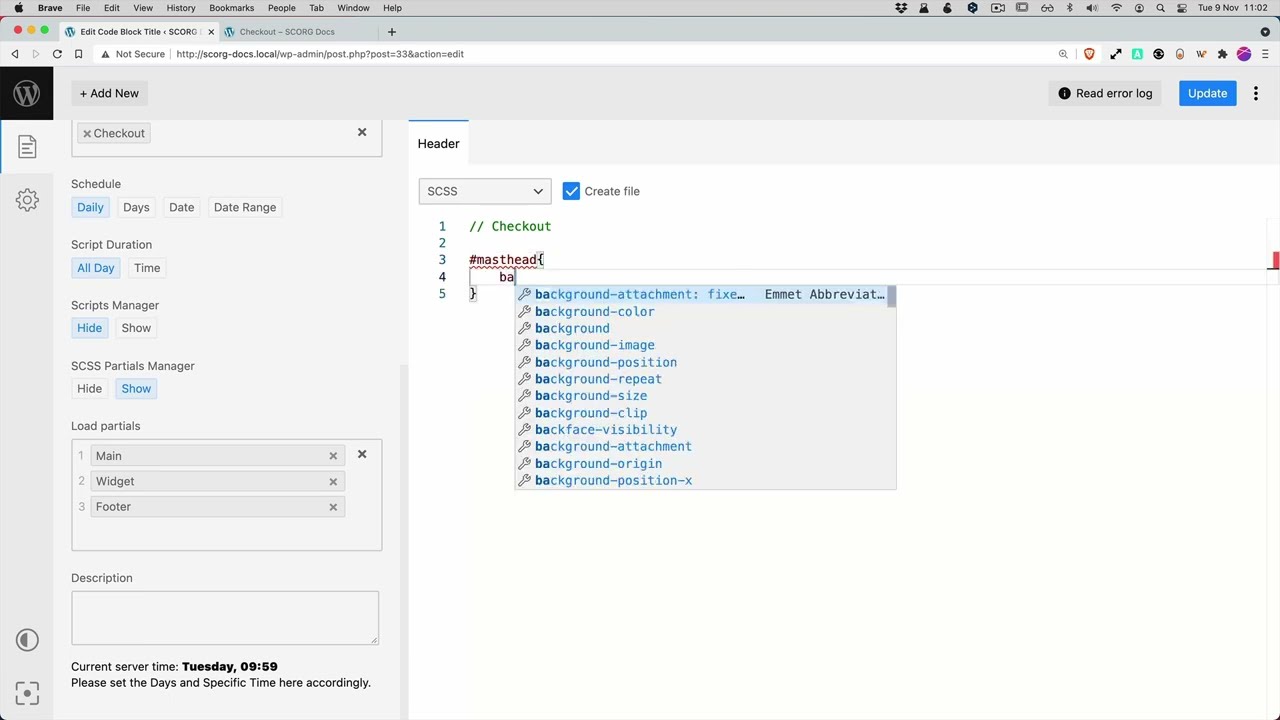
Most frameworks keep variables in one place and reuse them across files. If you move a variable out of the code block and forget to load it, compiling fails. We show that on purpose: after we delete the $icons map and save, Scripts Organizer displays Safe Mode is Not active with the error Undefined variable $icons: line: 7, column: 1 and an Enable Safe Mode button. The broken code isn't loaded on the site.
To fix it with a partial:
- Click + Partial to create a new SCSS partial (in the video: Playground Partial Test).
- Paste the
$iconsmap into it and publish. You can use multi-cursor editing to add or change entries quickly. - Go back to the code block, set SCSS Partials Manager to Show, and choose the partial in Load partials.
- Update the code block and use Disable Safe Mode. The block compiles again because the variable now comes from the partial.
To add another icon, add a new entry to the map in the partial (don't forget the comma) and save. The new .icon-…:before rule shows up in the playground. Any extra code you add to the block, such as a .test { padding: 20px; } rule, compiles along with it.
Who is this for
- WordPress developers building their own CSS framework who want to see what loops, lists and maps compile to without opening generated files.
- Anyone learning SCSS who wants a quick edit, save and preview cycle inside WordPress.
- Scripts Organizer users who want to keep shared variables in SCSS partials and reuse them across code blocks.
FAQ
Do I need to reload the page to see the compiled SCSS? No. After you save the code block, an event listener detects the change and the playground preview updates on its own.
Will the playground break if I rename the code block? No. The shortcode uses the code block's ID, not its title, so renaming it changes nothing.
Why doesn't my new code block show anything in the playground? Scripts Organizer only generates the file once the block contains code. Make sure Create file is checked, add some SCSS, publish, and then use the block's ID.
What happens if my SCSS uses an undefined variable?
Compiling fails, and Scripts Organizer shows the error with the line and column, for example Undefined variable $icons: line: 7, column: 1. You can fix it by loading the missing variables from an SCSS partial under Load partials.
Where can I get the playground shortcode? In the video we say the shortcode will be published once it's polished. Look for it at code.dplugins.com.
Get Scripts Organizer → dplugins.com