Custom WordPress Admin Dashboard with Oxygen and WP Admin Cleaner
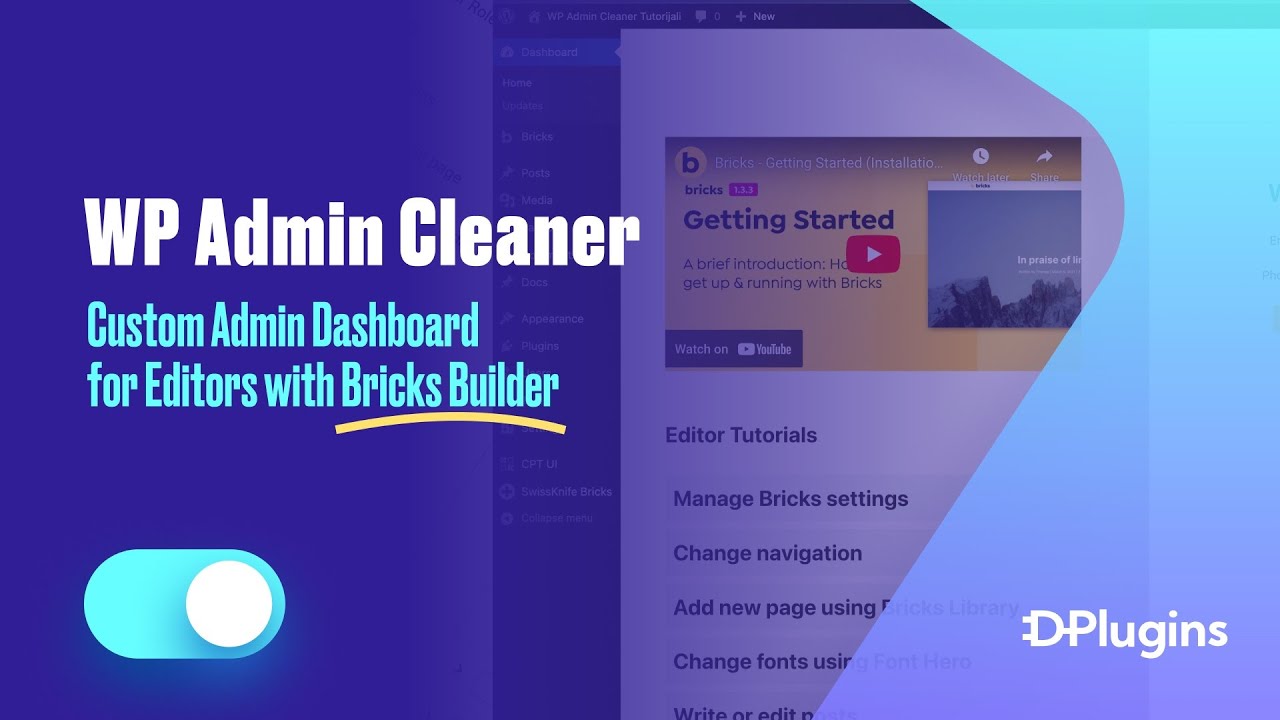
When a client or editor logs in, the first thing they see is the gray default WordPress dashboard. It has nothing about their site, no way to reach you, and no help on how to edit anything. In this video we build a custom WordPress admin dashboard in Oxygen Builder, with your contact details, an editor video and a list of tutorials, and then set it as the dashboard with WP Admin Cleaner's Custom Dashboard option. Editors get a branded start screen that answers their questions before they email you, and you build it with the same tools you use for the front end.
Creating the dashboard page
A dashboard that matches the site's branding feels like part of the product you delivered, not a WordPress default. Since it is a normal Oxygen page, you can reuse your design set and colors.
- Go to Pages and create a new page. We called it Dashboard page.
- Set the template to None. The dashboard doesn't need the site header and footer.
- Publish and click Edit with Oxygen.
- Add a Div and give it a dark Background color. The front end of our demo site uses a dark background, so we picked the same color from the Freelance palette to keep things consistent.
- Open Library → Freelance and add the Contacts 2 Columns block. Swap in your own address, phone and email. We duplicated it (with Swiss Knife installed, that's the Cmd+D shortcut) so the second copy could hold the video.
- In the second block, replace the contact content with a Video element. Paste a YouTube URL into the YouTube / Vimeo URL field and pick the 16:9 (standard widescreen) aspect ratio.
- Change the heading to Editor Video. You can record a short video just for your editors and hand it to them this way.
- Clean up whatever you don't need: the extra border, the columns you won't use, and any spacing that looks too big in the preview.
Control width without custom classes
Library blocks come with their own containers, and making new classes just to narrow one section adds clutter. We wrapped the content in a plain Div instead:
- Set the left and right Margin to auto.
- Give it a Max-width of about 700px.
That keeps the video small enough that the video and the contact details are both visible right away. If editors want a bigger video, they can open it on YouTube.
Configuring Admin Cleaner
Once the page exists, pointing WordPress at it takes one field.
- Open the dashboard page on the front end and copy its URL.
- Go to Tools → Admin Cleaner → Custom Dashboard.
- Paste the URL and click Save.
- Open Dashboard in wp-admin.
The default widgets are gone. Your branded page now loads in their place, and the WordPress admin menu stays on the left as usual.
Setting up custom post types
One video is fine at first, but editors usually need help on several separate tasks. Giving each tutorial its own post means you can add, reorder or update them without touching the dashboard design.
- Go to Plugins → Add New, search for the Custom Post Type UI plugin (CPT UI), then install and activate it.
- Open CPT UI → Add/Edit Post Types.
- Set Post Type Slug to
docs, fill in the labels and click Add Post Type. - A new Docs item appears in the admin menu. Add one post per tutorial, each with a title and the tutorial video in the content.
Our demo posts are Write or edit posts, Change fonts using Font Hero, Add new page using Oxygen Library, Change navigation and Manage Oxygen settings.
Building the repeater layout
We don't want to hardcode the list of tutorials. A Repeater builds it from the Docs posts, so a new Doc shows up on the dashboard without any extra work.
- Back in Oxygen on the dashboard page, open Helpers and add a Repeater.
- Inside the repeater, add a Link Wrapper (under Basics), and inside that a Heading.
- Set the heading text with Insert Data → Title.
- On the Link Wrapper, set Target to
_blankso tutorials open in a new tab and the dashboard stays open. Set Width to 100% and add some padding. - In the repeater query, choose the custom post type Docs and save.
- To get the styling, we borrowed a showcase class from the Freelance design set (
freelance-showcase-5-wrapper) and applied it to the Link Wrapper. - Reduce the heading font size, then set the Link Wrapper layout to Horizontal with Middle vertical alignment so the title sits centered in each card. We styled the IDs here rather than classes, because these styles won't be reused anywhere else.
- Set a small Gap on the repeater (we used 1 rem) to space the cards apart.
- For a hover effect, we used the browser inspector to find a slightly lighter shade of the card background, then added it as a hover style in custom CSS.
- Last step, and one that's easy to miss: set the Link Wrapper URL with Insert Data → Permalink. Otherwise the cards look clickable but go nowhere.
We also renamed the heading to Editor Videos so editors know what the list is.
Finalizing templates and wrap
If you click a tutorial now, the Doc opens in your site's regular single template, with the site header and navigation. We want tutorial pages to look like the dashboard, so they get their own template.
- Go to Oxygen → Templates and add a new template called Docs.
- Set Inherit design from other template to None.
- Under Where does this template apply?, pick Singular and select Docs.
- Publish. If the old template still shows, raise the Template Priority so this one wins.
- Edit with Oxygen: add a Div with the same dark background as the dashboard.
- Inside it, add an inner Div with Width 100%, a Max-width (we used 800px) and auto left/right margins.
- Add a Heading with Insert Data → Title (it shows as
[oxygen data='title']in the text field) and set the tag to h1. - Below it, the Inner Content element outputs the video from the post.
- Match the padding to the dashboard page and set a Min-height on the wrapper so short pages still fill the screen with the dark background.
We also went back to the dashboard page and deleted a leftover Works section from the library block.
The result: an editor logs in and sees your contact details and a list of tutorials. They open one, watch it, close it and open the next. If something is still unclear, your contact details are right there. It makes the handoff to a client and their editors much easier.
Who is this for
- Agencies and freelancers handing sites over to clients who want the client's first login to show help and contact details instead of WordPress news widgets.
- Oxygen Builder users who want to build the admin dashboard with the same design set and colors as the front end, without writing admin code.
- Site builders who train editors with videos and want those tutorials in one place, managed as posts that anyone can add to.
FAQ
How do I replace the default WordPress dashboard with a custom page?
Build the page like any other page, copy its URL, and paste it into Tools → Admin Cleaner → Custom Dashboard in WP Admin Cleaner, then save. The Dashboard screen in wp-admin will load your page.
Can I design the dashboard with Oxygen Builder?
Yes. In the video the whole dashboard is an Oxygen page with the template set to None, using elements from the Oxygen Freelance library, a Video element and a Repeater.
How do I add a list of tutorials that updates by itself?
Register a custom post type (we used CPT UI with the slug docs), add one post per tutorial, and show them with an Oxygen Repeater whose query is set to the Docs post type. Each item is a Link Wrapper linked to the post's permalink with the post title inside.
Why do the tutorial pages still show my site header?
Because they use your default single template. Create an Oxygen template that applies to Singular Docs, set inheritance to None, and raise the template priority if the old template still wins.
Do I need custom classes to control the layout?
No. We wrapped the library blocks in a plain Div with auto left and right margins and a max-width, which controls the width without adding new classes.
Get WP Admin Cleaner → dplugins.com