Custom WordPress Dashboard for Clients in Gutenberg: WP Admin Cleaner
When you hand a site over to a client, the default WordPress dashboard is the first thing they see, and it doesn't tell them anything useful. It doesn't say who to contact or where to find help. In this video we build a custom WordPress dashboard for clients with a normal Gutenberg page and the Custom Dashboard feature in WP Admin Cleaner. The page holds a welcome message, a contact button, a getting-started video and a list of tutorials. You edit it like any other page, and you don't need a separate site to host it.
Create the dashboard page
The dashboard is a regular WordPress page, so you design it with the same editor you use for the rest of the site. You don't need to learn a new tool, and changing it later is a normal page edit.
- Go to Pages → Add New and give the page a title. We used Custom dashboard.
- Write a welcome message for your client, or anything else you want them to see first.
- Add a short note on who to contact when they need support.
Add contact info
Clients shouldn't have to dig through old emails to find out how to reach you. Put a clear button on the dashboard instead.
- Add a Buttons block under the welcome text.
- Set the label. We used Contact email.
- Link it to your email address and Publish the page.
Set the page as the Custom Dashboard
This step swaps the default admin home screen for your page.
- Copy the URL of the page you just published.
- Go to Tools → WP Admin Cleaner → Custom Dashboard.
- Paste the URL into the Custom dashboard page URL field and click Save Changes. The help text there says: "If field is empty it will be ignored. Only filled input field is active."
- Open Dashboard. Your page replaces the default screen straight away.
The version in the video (1.6.0) was a beta and showed a "There is some error!" notice on the settings screen. We said in the video that it would be removed.
Remove the header and footer with a blank template
At first the page still shows the theme's header and footer, so it looks like the front end of the site squeezed into the admin. A blank template fixes that.
- Check that your theme has a blank template under Appearance → Editor → Templates. Ours already had one called Blank.
- Go back to Pages and edit Custom dashboard.
- In the Page sidebar, change Template from Page to Blank and click Update.
The blank template doesn't output the page title. To get it back, add a Heading block at the top of the content with the same text and update the page.
Add a getting-started video
A short video usually answers a client's first questions faster than a written guide.
- On YouTube, click Share under the video and copy the link.
- In the page editor, add an Embed block and paste the link.
- Update the page. Your client now sees the video on their dashboard.
Build a documentation section with a Docs post type
One video won't cover everything. If you keep your client tutorials in their own post type, you can list them on the dashboard and add new ones whenever you need to, without editing the dashboard page.
Register the post type
- We used the CPT UI plugin to register a post type called Docs.
- It doesn't need tags, categories or featured images. Titles and content are enough.
- For the demo we filled it with sample posts using FakerPress (Generate Posts, with Post Type set to Docs). On a real site you'd write the tutorials yourself.
List the tutorials with a Query Loop
- Edit the dashboard page and remove the video block if you don't need it anymore.
- Add a Query Loop block and choose Start blank, with only the post title.
- Remove the pagination and "no results" blocks. You know the list has posts, so you don't need them.
- In the block's Settings, turn off Inherit query from template and set Post type to Docs. If Docs doesn't appear in the list, reload the editor.
- Select the Post Title block and turn on Make title a link and Open in new tab under Link settings.
- Update the page.
The dashboard now lists every tutorial. When the client clicks one, it opens in a new tab and the dashboard stays open.
Hide the docs from Google
The Docs posts are public URLs on your live site. If you don't want them in search results, set them to noindex in your SEO plugin.
Use any builder
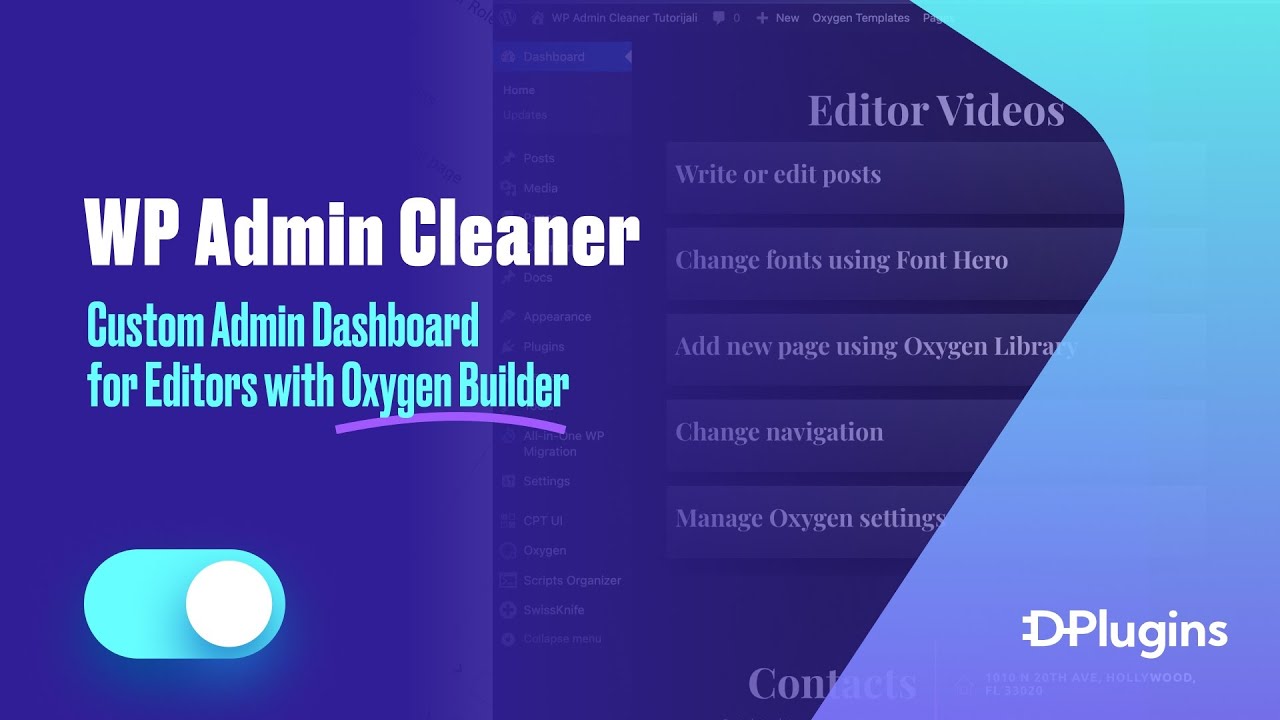
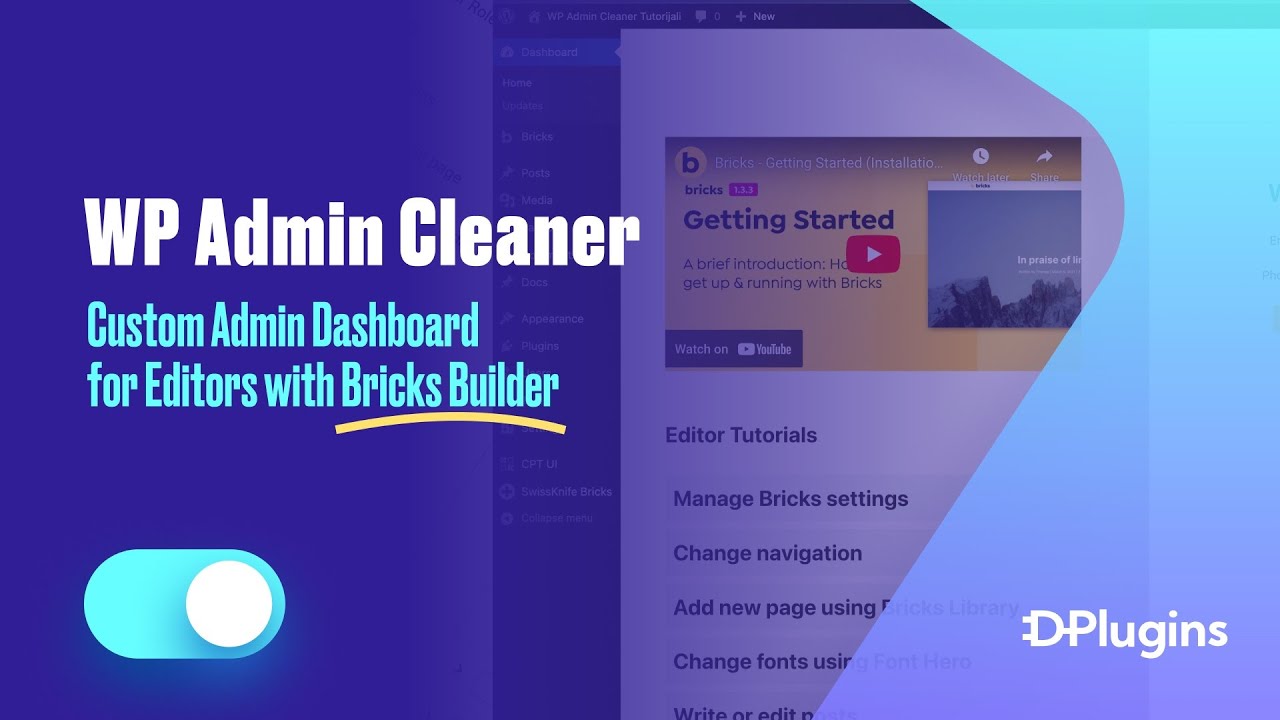
We built this in Gutenberg, but the Custom Dashboard setting just takes a page URL. You can build the page with Bricks Builder, Oxygen Builder or whatever builder or theme you already use.
Logged-out visitors are redirected
Since the dashboard is a page on your public site, you might wonder if anyone can open it. They can't. WP Admin Cleaner loads the page inside the dashboard and also redirects anyone who isn't logged in. When we opened the dashboard URL in an incognito window, it went straight to the home page. That means you can keep the dashboard on the client's own site without setting up an external one.
Who is this for
- Agencies and freelancers handing sites to clients who want the first admin screen to show contact details and help, not WordPress widgets.
- Site builders who train editors and want a getting-started video and a tutorial list in one place.
- Anyone already building in Gutenberg, Bricks Builder or Oxygen Builder who wants a custom dashboard without writing code or setting up a separate site.
FAQ
How do I replace the default WordPress dashboard with a custom page? Build a normal page, copy its URL, and paste it into Tools → WP Admin Cleaner → Custom Dashboard → Custom dashboard page URL. Click Save Changes, and the page shows up when you open Dashboard.
How do I remove the theme header and footer from the custom dashboard? Set the page's Template to Blank in the page sidebar. A blank template doesn't show the title, so add it back with a Heading block.
Can logged-out visitors see my custom dashboard page? No. Anyone who isn't logged in and opens the page URL gets redirected to the home page, so it's safe to keep the page on your live site.
How can I add client documentation to the WordPress dashboard? Register a Docs post type (we used CPT UI) and write your tutorials there. Then add a Query Loop to the dashboard page, set to the Docs post type, with Make title a link and Open in new tab turned on for the post title.
Do I have to build the dashboard in Gutenberg? No. The setting only needs a page URL, so you can use Bricks Builder, Oxygen Builder or any other builder.
Get WP Admin Cleaner → dplugins.com