Custom WordPress Dashboard Page in Any Builder with a Code Snippet
When clients log in to WordPress, the first screen they see is a dashboard full of widgets they don't need. It has no welcome video and no way to reach you. This video shows how to build a custom WordPress dashboard page in any builder (Gutenberg, Bricks Builder or Oxygen Builder) and show it inside wp-admin with a short code snippet. You design the page with tools you already use, and changing it later is a normal page edit. You don't touch the code again.
This started as a request from Joseph in our Facebook group. He wanted to give a client a simplified admin with instructional videos and a contact form. Before we decide whether this belongs in WP Admin Cleaner, here it is as a free snippet you can run with Scripts Organizer.
The idea: a dashboard page in any builder
Dashboard plugins usually give you their own editor or support only one builder. Here the dashboard is a regular WordPress page. You build it in whichever editor you like, and a PHP snippet loads it into the dashboard area in an iframe. The approach has two parts:
- Remove all default dashboard widgets.
- Load your page into the empty dashboard in an iframe, then position it with a few lines of CSS.
Remove default dashboard widgets
Your page needs an empty dashboard to sit on. WordPress has a hook for this: wp_dashboard_setup. Its reference page is on developer.wordpress.org.
- In Scripts Organizer, create a new code block and call it Custom Dashboard.
- Make sure Enable Code Block is on.
- Set Trigger location to Admin only, so the code runs only inside wp-admin.
- Set Script Location to PHP.
- Paste the function below and click Publish.
<?php

function remove_dashboard_widgets(){

    global $wp_meta_boxes;

    foreach( $wp_meta_boxes["dashboard"] as $position => $core ){

        foreach( $core["core"] as $widget_id => $widget_info ){

            remove_meta_box( $widget_id, 'dashboard', $position );
        }
    }

}
add_action( 'wp_dashboard_setup', 'remove_dashboard_widgets', 1000000 );
?>
The snippet loops through every core widget in each dashboard position and removes it. After you publish, the Dashboard shows only the "Add boxes from the Screen Options menu" placeholders. The only thing left is the Welcome to WordPress! panel, and you can close it with its Dismiss link.
Build the dashboard page in Gutenberg
With the widgets gone, you need content to show. We start with the block editor because every WordPress site has it.
- Go to Pages → Add New and name the page, for example Dashboard Gutenberg.
- Add a Columns block. In the first column, add a YouTube block and paste the URL of your welcome video.
- In the second column, add a Paragraph with your text: instructions, contact details, or anything else the client should see first.
- Publish the page.
Keep it simple or design it however you want. It's a normal page, so any block you can use elsewhere works here.
Embed it as an iframe and style it
The page needs to appear inside the dashboard. An iframe with an ID loads the page, and the ID gives the CSS something to target.
Go back to the Custom Dashboard code block and add a second function to the PHP. The src="url" part is a placeholder. Replace it with the address of your dashboard page:
function add_custom_dashboard_page(){

    echo '<iframe id="customDashboard" src="url" title="description"></iframe>';

}

add_action( 'wp_dashboard_setup', 'add_custom_dashboard_page', 1000000 );
Click Update and open the Dashboard. The iframe is there, but it's a small box. To fix that:
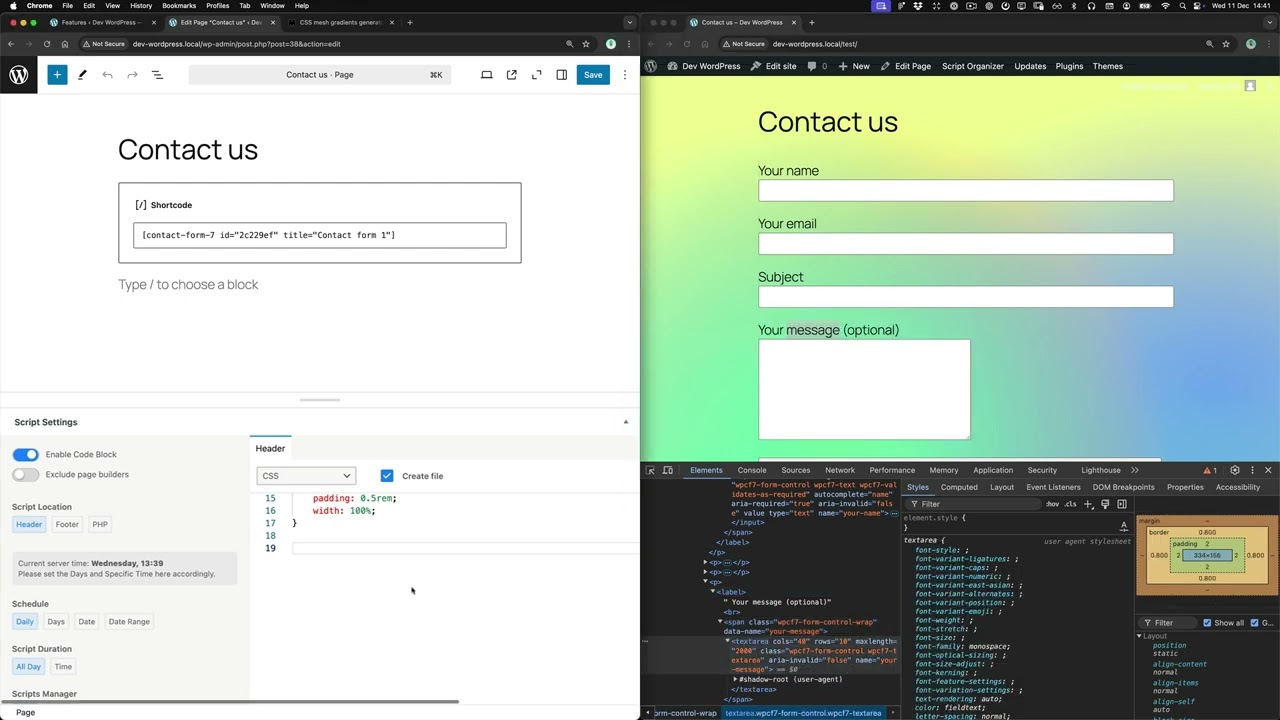
- In the same code block, open the Header tab and pick CSS.
- Target the iframe ID and make it fixed, placed next to the admin menu. The admin menu is 160px wide, so the iframe starts 160px from the left.
- Set the width to
calc(100% - 160px). A plain100%makes it overflow off the right side. We used browser DevTools to test values before saving them. - Add a
min-heightso it fills the screen.
The finished CSS, including the white background we added later for Oxygen (see below):
#customDashboard{
    position: fixed;
    z-index: 10;
    top: 0px;
    left: 160px;
    width: calc(100% - 160px);
    min-height: 100vh;
    background-color: white;
}
Reload the Dashboard. The Gutenberg page, with its video and text, now fills the admin area. The Preview panel in Scripts Organizer lets you check the result while you edit the CSS.
Build the same page in Bricks Builder
If Bricks Builder is your main tool, you can build the dashboard there. The snippet stays the same.
- Activate the Bricks theme under Appearance → Themes.
- Create a page (we used Dashboard Bricks), publish it and click Edit with Bricks.
- Add a Container with two Column elements for a 50/50 layout.
- In the first column, add a Video element and set the YouTube URL. In the second, add Basic Text with your copy.
- Save, copy the page URL and paste it into the iframe
srcin the Scripts Organizer code block.
The Bricks page now shows in the Dashboard, and you can style it in Bricks like any other page.
Build the same page in Oxygen Builder
Oxygen works the same way. There's just one extra line of CSS.
- Activate Oxygen under Plugins, create a page (we used Dashboard Oxy), publish it and click Edit with Oxygen.
- Add Columns, then add a Video element to the first column. Paste the link into YouTube / Vimeo URL.
- Add a Text element to the second column.
- Save and exit, then replace the iframe
srcwith the new page URL.
On the Dashboard, the Oxygen page had no background, so the admin screen showed through. Adding background-color: white; to the #customDashboard rule fixed it (it's already in the CSS above).
Who is this for
- Agencies and freelancers handing sites to clients: the first screen after login shows your welcome video and contact details instead of WordPress widgets.
- Bricks Builder, Oxygen Builder or Gutenberg users: you design the dashboard in the builder you already use. No separate dashboard editor to learn.
- Anyone who prefers a small snippet over another plugin: two functions and one CSS rule, run through Scripts Organizer.
FAQ
How do I remove all default widgets from the WordPress dashboard?
Hook a function into wp_dashboard_setup. The function loops through $wp_meta_boxes["dashboard"] and calls remove_meta_box() for each core widget. The full snippet is above. Run it in the admin only.
Can I build the custom dashboard in Bricks Builder or Oxygen Builder instead of Gutenberg? Yes. The dashboard is a normal published page loaded in an iframe, so any builder works. The video builds the same page in Gutenberg, Bricks Builder and Oxygen Builder, and only the iframe URL changes.
Why is my iframe too small or overflowing the admin area?
It needs positioning. Use position: fixed, top: 0px, left: 160px to clear the admin menu, width: calc(100% - 160px) and min-height: 100vh.
Why does my Oxygen dashboard page look transparent?
The Oxygen page had no background of its own. Add background-color: white; to the #customDashboard CSS.
Do I need Scripts Organizer for this? The video uses Scripts Organizer to run the PHP in the admin only and to add the CSS to the header. The code itself is standard WordPress PHP and CSS.
Get Scripts Organizer → dplugins.com