
DevKit 2.3.0 Performance features
Performance Quick Scan: Find What’s Slowing Down Your WordPress Site
WordPress performance issues can be frustrating and hard to diagnose. Is it your database? Your plugins? Large media files? Without the right tools, you’re left guessing—or installing multiple plugins just to get answers.
Performance Quick Scan gives you a complete performance audit of your WordPress site in seconds, all from one place.
What Does Performance Quick Scan Do?
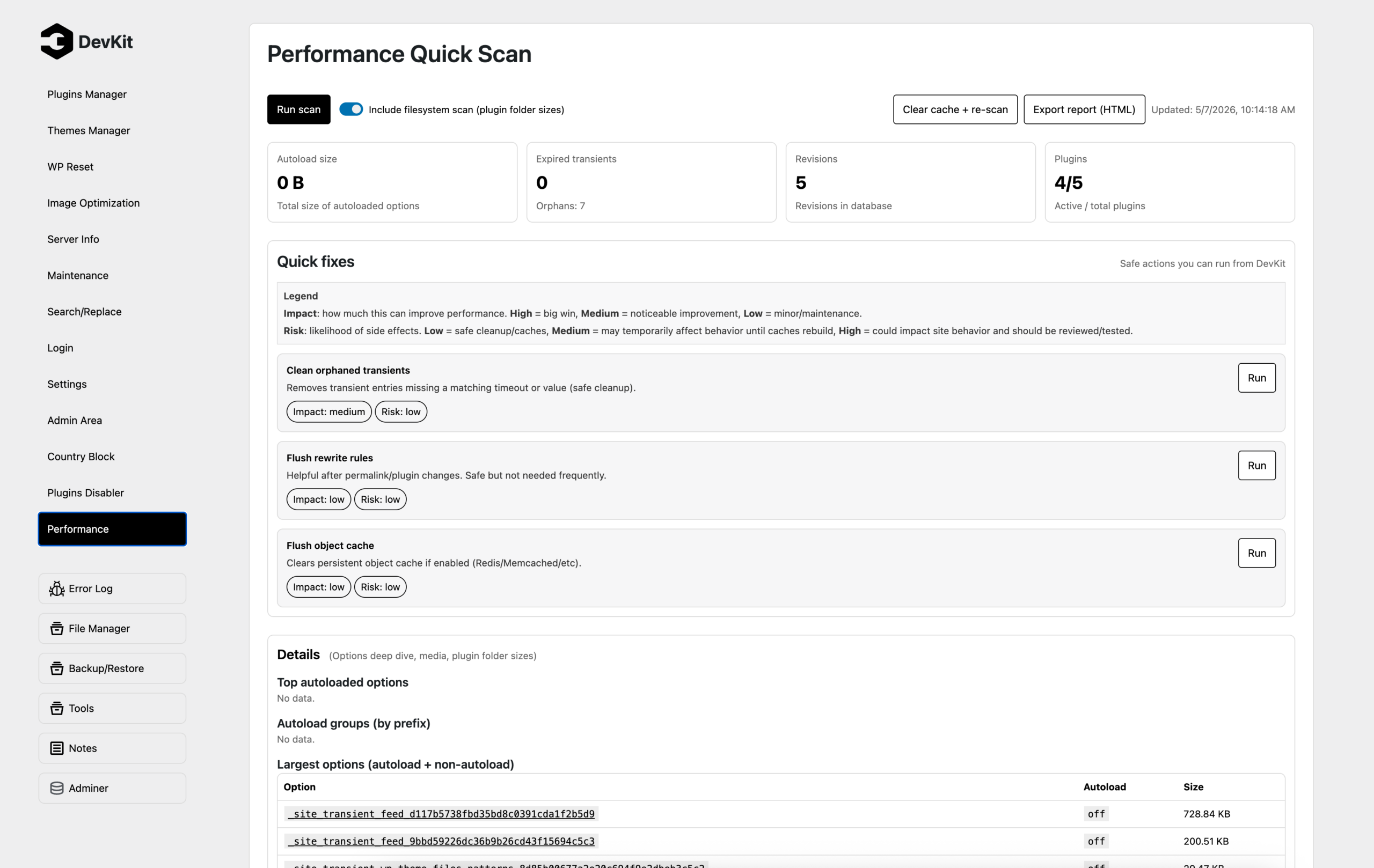
Performance Quick Scan analyzes your WordPress database and filesystem to identify common performance bottlenecks. It scans:
- Autoloaded options that load on every page request (often the #1 cause of slow sites)
- Expired and orphaned transients cluttering your database
- Post revisions and drafts taking up space
- Plugin folder sizes to find bloated plugins
- Largest media files that could be optimized
- Database health with actionable recommendations
All results are presented in a clean, organized dashboard with exportable HTML reports.
Why This Solves Real Problems
1. Autoload Bloat
Many WordPress sites unknowingly load hundreds of kilobytes (sometimes megabytes!) of data on every page load. Page builders and poorly-coded plugins store large amounts of cached data in autoloaded options, which WordPress loads into memory before rendering any page.
Performance Quick Scan shows you:
- Total autoload size
- Top autoloaded options by size
- Autoload groups by plugin/prefix (so you know which plugin is the culprit)
You can click any option to inspect its contents and see if it’s safe to optimize.
2. Database Clutter
WordPress stores temporary data as “transients” with expiration times. When transients expire, they should be cleaned up automatically—but often they aren’t. Over time, expired transients and orphaned entries accumulate, slowing down queries.
Performance Quick Scan detects:
- Expired transients that can be safely deleted
- Orphaned transient entries (timeout without value, or value without timeout)
- Post revisions and auto-drafts that can be purged
3. Plugin Inefficiency
Not all plugins are created equal. Some are lightweight, while others ship with massive dependencies or unnecessary assets.
With the optional filesystem scan, Performance Quick Scan measures plugin folder sizes on disk. This helps you identify:
- Plugins with bloated codebases
- Plugins shipping large vendor directories
- Opportunities to replace heavy plugins with lighter alternatives
4. Media Management
Large, unoptimized images can dramatically slow down your site. Performance Quick Scan includes:
- Quick scan: Shows a sample of recently uploaded media files
- Full scan: Scans ALL attachments in batches to find the true largest media files across your entire library
You can identify oversized images and optimize them for the web.
Quick Fixes Built In
Performance Quick Scan doesn’t just show you problems—it lets you fix them instantly with one-click actions:
- Delete expired transients (low risk, medium impact)
- Clean orphaned transients (low risk, medium impact)
- Flush rewrite rules (helpful after plugin changes)
- Flush object cache (if Redis/Memcached is enabled)
Each fix shows its impact level (how much it helps) and risk level (how safe it is), so you can make informed decisions.
Export Performance Reports
Need to share your findings with a developer or keep records over time? Performance Quick Scan includes a one-click HTML export feature that generates a beautiful, self-contained performance report you can download and send anywhere.
When Should You Use This?
- Before launching a new site to ensure optimal performance from day one
- After installing/updating plugins to check for performance regressions
- When your site feels slow to quickly identify the cause
- During routine maintenance to keep your database clean and healthy
- Before migrating to a new host to establish a performance baseline
How It Works
Performance Quick Scan runs safe, read-only queries against your database and (optionally) scans your plugin directories. Nothing is modified unless you explicitly run a fix action.
Scans are cached for 30 minutes, so you can review results without re-running heavy queries. You can clear the cache anytime to force a fresh scan.
All scans run on-demand—nothing happens automatically. You’re always in control.
The Bottom Line
Performance Quick Scan gives you visibility into your WordPress performance without needing to install multiple plugins, run expensive queries, or guess what’s slowing you down.
It’s like having a performance audit tool built right into your WordPress admin—fast, actionable, and designed for both beginners and developers.
Stop guessing. Start optimizing.
Plugins Disabler: Speed Up Your Site by Disabling Plugins Where They’re Not Needed
Your WordPress site probably loads dozens of plugins on every page—even when most of them aren’t needed. Contact forms on your blog posts. E-commerce plugins on your about page. Page builder code on static pages.
All that unnecessary code slows down your site, increases memory usage, and wastes server resources.
Plugins Disabler solves this by letting you disable specific plugins on specific pages, giving you granular control over what loads where.
What Does Plugins Disabler Do?
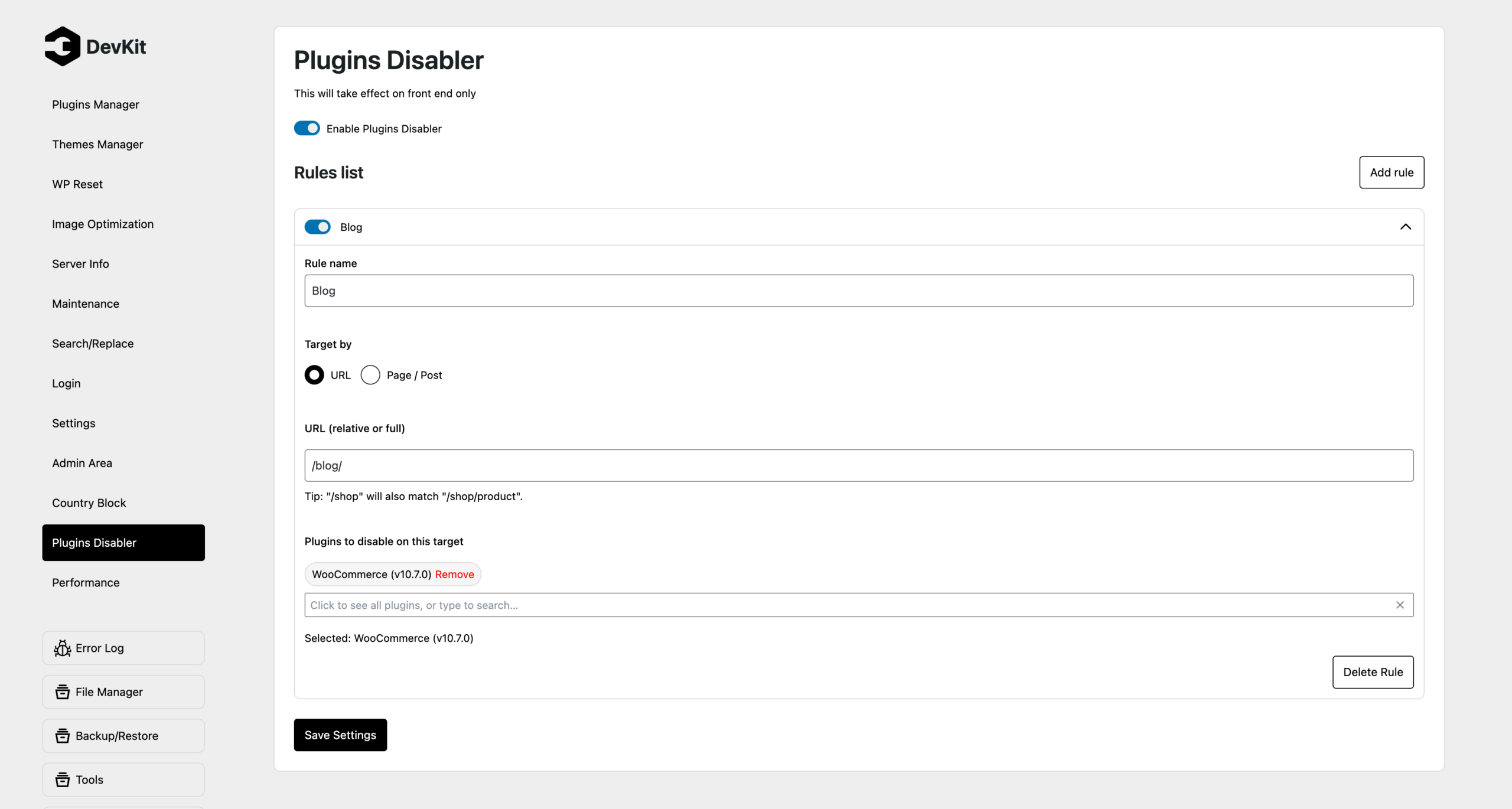
Plugins Disabler lets you create rules that disable specific plugins on specific URLs or posts/pages. Instead of loading all your plugins everywhere, you can:
- Disable WooCommerce on non-shop pages
- Turn off page builders on simple blog posts
- Skip contact form plugins on pages without forms
- Disable event calendar plugins on non-event pages
- Prevent heavy plugins from loading on landing pages
Each rule can target:
- Specific URLs (like
/shop/or/contact/) - Individual posts or pages (selected via search)
- Multiple plugins at once
Rules are applied at the WordPress core level, so disabled plugins never initialize—saving memory, reducing HTTP requests, and speeding up page load times.
Why This Solves Real Problems
1. Plugin Bloat
The average WordPress site runs 20-30 plugins. Each plugin adds:
- PHP initialization code
- Database queries
- JavaScript and CSS assets
- HTTP requests
- Memory overhead
Even lightweight plugins add up. Heavy plugins like WooCommerce, Elementor, or LearnDash can consume significant resources—even on pages where they’re not used.
Plugins Disabler ensures plugins only load where they’re actually needed.
2. Page-Specific Optimization
Different pages have different needs. Your homepage might need sliders and forms. Your blog posts don’t. Your shop needs e-commerce. Your about page doesn’t.
With Plugins Disabler, you can:
- Create a “landing page” rule that disables all non-essential plugins for maximum performance
- Turn off heavy plugins on blog posts to improve reading speed
- Skip form plugins on pages without forms
- Disable social sharing plugins on admin or checkout pages
This targeted approach gives you the best of both worlds: full functionality where you need it, and lean performance everywhere else.
3. Conflict Prevention
Some plugins conflict with each other, causing JavaScript errors or layout issues. Instead of deactivating plugins site-wide, you can disable them only on pages where conflicts occur.
For example:
- Disable a slider plugin on pages with a different slider
- Turn off a page builder on posts using the classic editor
- Skip animation libraries on static pages
4. Developer & Agency Workflows
If you build client sites, you know the struggle: clients install plugins they don’t need, and performance suffers. Plugins Disabler gives you a way to optimize their sites without removing functionality.
You can:
- Set up optimized rules as part of your site delivery
- Document which plugins run where
- Prevent unnecessary plugin load without restricting client access
How It Works
Plugins Disabler hooks into WordPress early—before plugins are initialized—and filters the active plugins list based on the current URL. If a rule matches, the specified plugins are removed from the active list for that request only.
This means:
- ✅ Disabled plugins are never loaded into memory
- ✅ Their code never runs
- ✅ Their assets are never enqueued
- ✅ Zero performance overhead (it’s just a list filter)
The feature is frontend-only. Plugins are never disabled in the admin area, during AJAX requests, or when running WP-CLI commands—so your admin experience and background processes remain unaffected.
Creating Rules
Each rule consists of:
- A name (for your reference)
- Enable/disable toggle (activate or deactivate the rule without deleting it)
- Target type:
- URL-based: Match specific paths like
/shop/,/blog/, or/landing-page/ - Post-based: Select specific posts or pages via search
- URL-based: Match specific paths like
- Plugins to disable: Multi-select from your installed plugins list
Rules support prefix matching, so a rule for /shop/ automatically matches /shop/product-name/ and /shop/category/.
You can create as many rules as you need. Rules are processed in order, and multiple rules can match the same page.
Real-World Examples
Example 1: Disable WooCommerce on Non-Shop Pages
Target: URL / (homepage) Disable: WooCommerce, WooCommerce Blocks, WooCommerce Payments Result: Homepage loads without e-commerce overhead
Example 2: Optimize Landing Pages
Target: URL /landing-page/ Disable: Contact Form 7, Jetpack, Yoast SEO, Akismet Result: Lean, fast landing page with minimal plugin load
Example 3: Disable Page Builder on Blog Posts
Target: Post selection (all blog category posts) Disable: Elementor, Elementor Pro Result: Blog posts load faster without page builder code
Example 4: Skip Plugins on Static Pages
Target: Page selection (About, Privacy Policy, Terms) Disable: WPForms, MonsterInsights, Social Snap Result: Static pages load instantly
Safety & Best Practices
- DevKit itself is protected: You can never accidentally disable the DevKit plugin
- Admin always works: Rules only apply to frontend requests
- No conflicts with caching: Works seamlessly with caching plugins and CDNs
- Multisite compatible: Rules respect sitewide plugins
- Easy to test: Toggle rules on/off without deleting them
Before deploying rules on a live site, test them on staging to ensure nothing breaks.
When Should You Use This?
- High-traffic pages where every millisecond counts (landing pages, checkout flows)
- Blog posts that don’t need heavy plugins
- Static pages that load unnecessary code
- E-commerce sites where shop plugins run on non-shop pages
- Membership sites where gated content loads everywhere
- Sites with 15+ plugins where optimization matters
The Bottom Line
Most WordPress sites load way more code than they need on every page. Plugins Disabler gives you surgical control over plugin loading, so you can:
- Reduce memory usage
- Speed up page load times
- Prevent plugin conflicts
- Optimize high-traffic pages
- Keep your plugin library without sacrificing performance
It’s like putting your plugins on a diet—only loading what’s necessary, when it’s necessary.
Stop loading everything everywhere. Start optimizing.