Export and Import Code Blocks and SCSS Partials: Scripts Organizer
Rebuilding the same code blocks and SCSS partials by hand on every new WordPress site is slow, and it's easy to get something wrong. Scripts Organizer lets you export code blocks and SCSS partials as JSON files and import them on another site. This video shows how to do it in bulk or one item at a time, and which order to import in so code blocks stay connected to their partials.
Bulk export code blocks and SCSS partials
When you move a whole setup to a new site, you want every snippet in one file, not ten separate downloads.
- Go to Scripts Organizer → Code Blocks.
- Tick the checkbox in the header to select all code blocks, or tick only the ones you want.
- Open Bulk actions, choose Export Selected and click Apply. There is also an Export All button next to the filters.
- Save the JSON file. In the video it's named
scorg_code-blocks.json. - Do the same under Scripts Organizer → SCSS Partials and save that file too (
scorg_partials.json).
Export a single code block
Sometimes you only need one snippet on another site. Hover over the title of the code block in the list and click the Export link. Save the JSON file to your computer. The default name looks like scorg_export_2021-11-10.json.
Import partials first, then code blocks
If a code block uses an SCSS partial and you import the code block first, the partial it needs isn't on the new site yet. Import in this order to keep them linked:
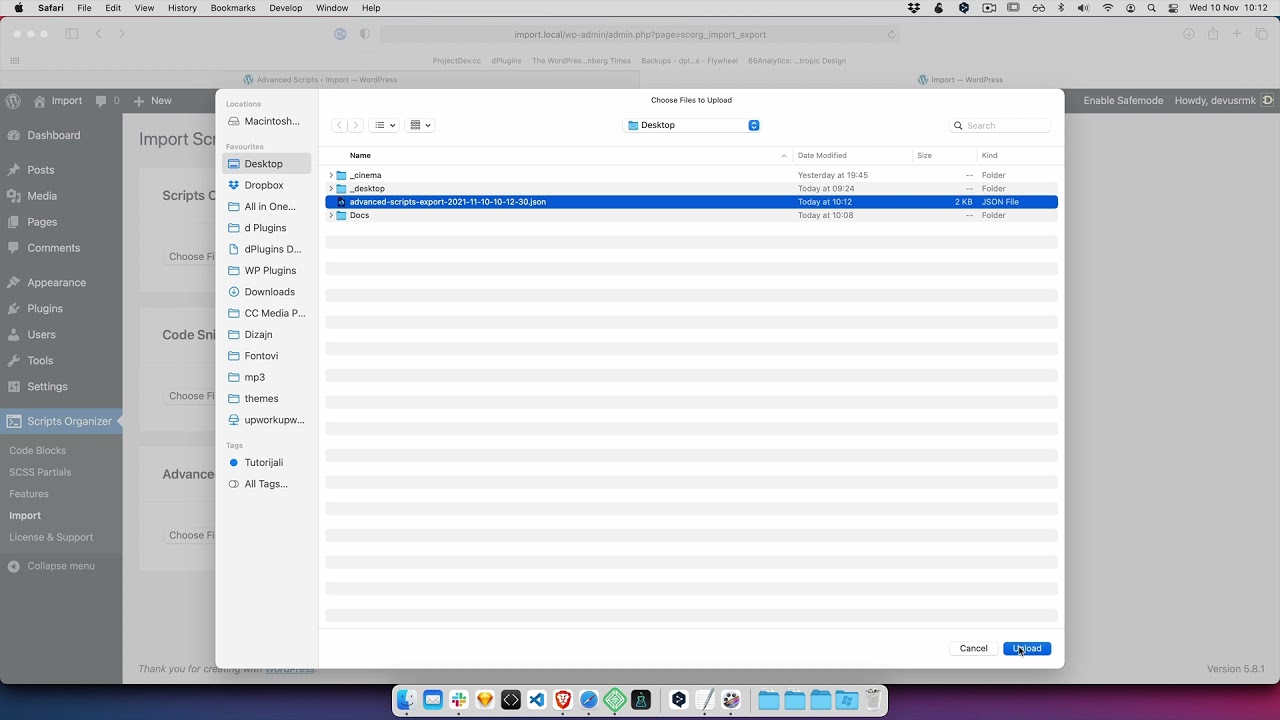
- On the new site, go to Scripts Organizer → Import.
- Choose the partials JSON file and click Import JSON.
- Repeat with the code blocks JSON file.
- Open a code block that uses partials (in the video, Theme Home) and scroll down. The partials you imported are listed there as loaded.
This lets you build your code blocks and partials once and reuse them on every site without copy-pasting.
Get Scripts Organizer → dplugins.com